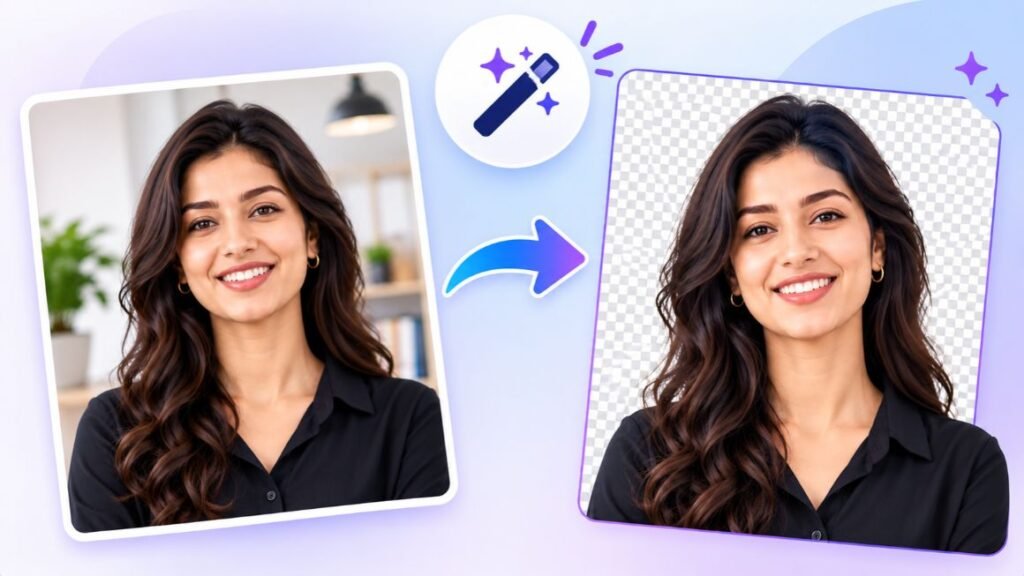
Cutting a subject out of a photo used to mean twenty minutes with the Pen tool and a very steady hand. Today it takes about three seconds. That speed is also why choosing between AI background remover tools has become so confusing: dozens of apps promise a perfect cutout, and most of them look identical in a demo.
This guide is for designers, content creators, sellers and social media managers who cut out images every week and want to stop wasting time on the wrong tool. We looked at twelve options as they stand in November 2026, including one big shake-up in the market you need to know about. For each tool you’ll get what it does, where it shines, where it struggles, and who should use it.
What Is an AI Background Remover and How Does It Work?
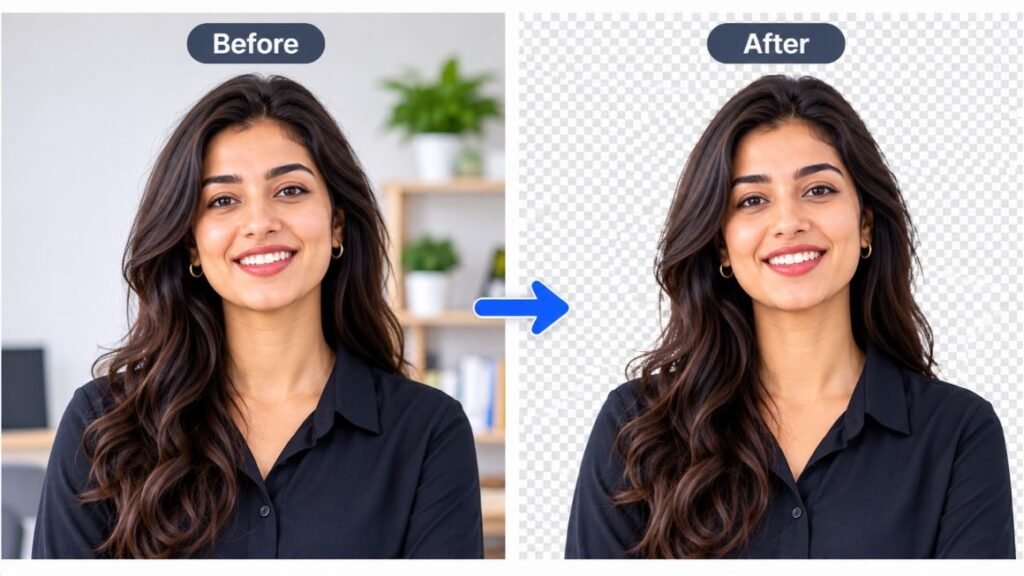
An AI background remover is software that detects the main subject in an image and deletes everything behind it, leaving a transparent background. It does this without you tracing the outline by hand.
Under the hood, most of these tools use segmentation, which is a computer vision method that labels every pixel in a photo as either subject or background. The result is a mask, meaning a black and white map that tells the editor which pixels to keep. Better tools also produce a soft alpha channel, which stores partial transparency so hair, fur and glass don’t end up with hard, jagged edges.
That edge quality is the whole game. Any tool can cut out a red mug on a white table. The difference shows up on wispy hair, a see-through wine glass, or a knitted sweater against a busy street. Keep that in mind as you read, because the tools below are ranked by what they do well, not by who has the loudest marketing.
An AI background remover uses segmentation to label each pixel as subject or background, then outputs a mask and a transparent image. The quality gap between tools shows up on hair, glass and fabric edges, not on simple objects.
Why Remove.bg Users Are Switching in 2026
Remove.bg, long the default name in this category, is closing its standalone service. According to a Photoroom blog post dated October 29, 2026, the website and self-serve API stop working on December 1, 2026. Background removal moves into Canva, and API access moves to Leonardo.ai, which Canva also owns.
If you used remove.bg’s Photoshop plugin or its API in a workflow, that’s the part to plan for now. Unused pay-as-you-go credits expire on the shutdown date, and the plugin and other integrations are discontinued too. Enterprise API contracts are reported as unaffected.
This is the main reason we left remove.bg out of the ranked list and focused on tools you can rely on past the end of the year. Two entries below, Canva and Leonardo.ai, are where its technology is heading.
How to Choose the Right Tool for Your Work
Start with the job, not the brand. Most people searching for the best AI background remover tools end up comparing feature lists, when a better approach is to ask four plain questions.
First, how many images do you cut out per week? Five a week is a free-tier job. Five hundred is a batch or API job. Second, what’s in the photos: people, products, or both? Third, do you need the result inside a design tool, or just a clean PNG file? And fourth, do you work on a phone or a laptop?
Answer those and the field shrinks to two or three candidates. Then test each on your own hardest image. A tool that handles a flat product shot tells you nothing about how it handles curly hair.
Adobe Express: Best for Free, Fast Cutouts
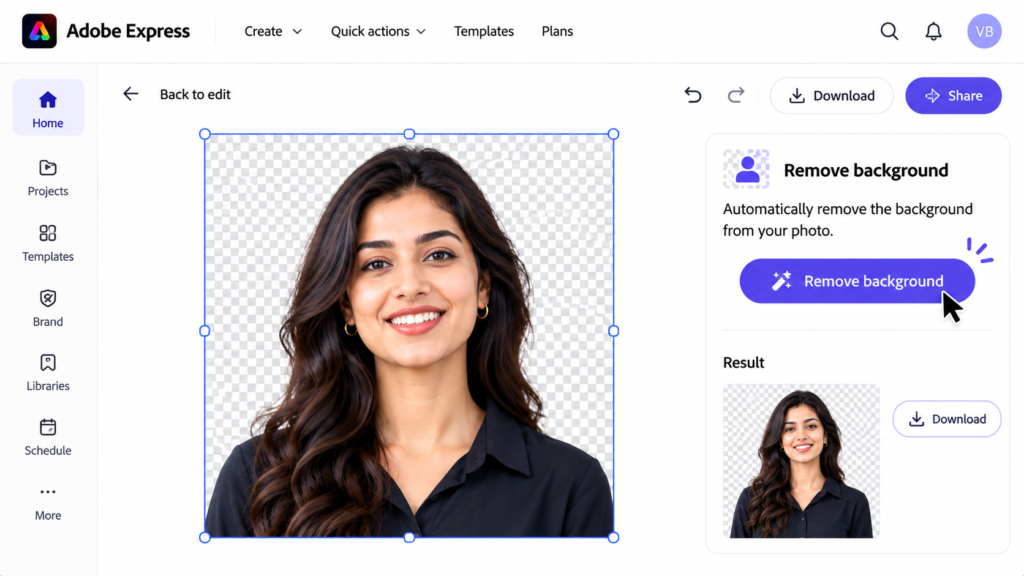
Adobe Express is Adobe’s browser and mobile design app, and its one-click background remover is among the simplest to use. Upload an image, click Remove background, and download a transparent PNG.
What it does well. The free plan includes background removal with no watermark and no Creative Cloud subscription, which makes it a strong default for anyone who cuts out a handful of images a week. It also pairs removal with templates, resizing and basic generative tools in the same editor.
Where it falls short. Hair and glass edges trail the more specialised tools. For social graphics that’s fine. For a glass perfume catalogue, you’ll see halos.
Best for: Creators and small businesses who want a free, no-fuss option.
Pricing: Free with an Adobe account. Express Premium runs about $9.99 a month as of late 2026, mainly for premium templates and video features.
Canva: Best for Cutouts Inside Your Design
Canva’s Background Remover lives inside the editor, so you cut out an image and drop it straight onto a poster, thumbnail or slide without exporting anything. With remove.bg folding into Canva, expect this feature to get more attention in 2027.
What it does well. The workflow is the selling point. Remove the background, add a shadow, place the subject over a new color, and publish, all in one tab. It also handles video clips on paid plans, which most photo-only tools can’t do.
Where it falls short. It’s a Pro feature, so you’re paying for the full design suite even if cutouts are all you need. Free accounts get very limited access.
Best for: Marketers and social teams already building in Canva every day.
Pricing: Canva Pro is roughly $12 to $18 a month depending on billing, as of late 2026. Check Canva’s pricing page, because plans have shifted this year.
Adobe Photoshop: Best for Precision and Hard Edges
Photoshop is the heavyweight. Its Select Subject and Remove Background tools use Adobe’s AI to build a mask in one click, and the Select and Mask workspace lets you refine it by hand.
What it does well. Control. You can paint back a strand of hair, feather an edge, or fix a jacket sleeve that the AI clipped. Nothing else on this list lets you correct a mistake this precisely, and masks stay non-destructive, so you can change your mind tomorrow.
Where it falls short. It’s overkill for simple jobs, and there’s a real learning curve. It’s also the most expensive tool here.
Best for: Professional retouchers and designers delivering client work where one bad edge costs you the job.
Pricing: Plans start around $22.99 a month on the annual plan billed monthly, as of late 2026. There’s no permanent free desktop version.
Photoroom: Best for Product Photos and Sellers
Photoroom is built around e-commerce. It removes the background, then offers AI-generated studio scenes, soft shadows, marketplace-ready sizing and batch templates.
What it does well. Product photography. If you sell on Amazon, Etsy or Shopify, you can run an entire catalogue through a template and get consistent white or lifestyle backgrounds. Its API is priced per image, from about $0.02 on the entry plan, which suits stores that add products often.
Where it falls short. The interface leans hard toward product shots, so it feels cramped for portrait or illustration work. And there’s no real permanent free plan, only a trial and limited watermarked output, depending on the version you open.
Best for: Online sellers and brand teams shooting lots of similar products.
Pricing: Pro is about $12.99 a month, with higher Max and Ultra tiers, as of late 2026.
Pixelcut: Best for Mobile-First Creators
Pixelcut is a phone-first editor, and it’s genuinely quick. Open the app, tap a photo, and the cutout appears before you’ve put the phone down.
What it does well. Speed and price. Exports on the free plan come without a watermark, and the Pro tier is cheaper than most rivals. Marketplace templates make it handy for sellers working from a phone.
Where it falls short. Edges on fuzzy knitwear and hair are softer than the top tier tools, and the web app doesn’t match the mobile one. Some users also report billing and support frustrations, so read the cancellation terms before you subscribe.
Best for: Instagram sellers, solo creators and anyone editing on a phone.
Pricing: Pro is about $10 a month (cheaper billed yearly) as of late 2026, with a free tier that caps removals.
Clipdrop: Best for Portraits and Creative Edits
Clipdrop comes from the Stability AI team and bundles several image tools: background removal, cleanup, relighting and upscaling. Its remover handles portraits and fine hair well.
What it does well. Variety. After removing a background you can relight the subject so it matches a new scene, which fixes the flat, pasted-on look that ruins many composites. The free tier gives you about 20 removals per day.
Where it falls short. That daily cap and the standard resolution output make the free tier unsuitable for volume work, and paid pricing has varied between sources, so confirm it on the site. It also trails Photoroom on hard product shots.
Best for: Creative professionals making composites, posters and portrait edits.
Pricing: Free with limits. Paid plans are reported at around $15 a month as of late 2026.
Picsart: Best for Social Content and Quick Swaps
Picsart is a social-first editor popular with younger creators. The background remover sits next to stickers, filters, collage tools and a large template library.
What it does well. Replacement. Remove a background and swap in a gradient, a pattern or a generated scene in a couple of taps. It also connects to Zapier, which helps if you want to automate a content pipeline.
Where it falls short. Free users get roughly five credits a week, and removal can cost multiple credits per image, so bulk work gets expensive fast. Hair detail also trails the leaders, and the interface is busy.
Best for: Social media creators who edit for fun and speed rather than print quality.
Pricing: Pro starts around $7 a month billed yearly, as of late 2026.
Kapwing: Best for Video Background Removal
Kapwing is a browser-based video editor with a background remover for both images and clips. That video support is the reason it’s on this list.
What it does well. Talking-head videos, podcast clips and short-form content. You can strip a messy room out of a clip, then add captions and export, all in the same tool. Most photo-focused removers can’t touch video at all.
Where it falls short. Free exports are watermarked and capped at 720p, and the monthly credit allowance is small. It’s also not built for processing thousands of photos.
Best for: Video creators and social teams cleaning up short clips.
Pricing: Free with 10 credits a month. Pro is about $16 a month billed annually, as of late 2026.
Cutout.pro: Best for Low-Cost Credit Bundles
Cutout.pro sells one credit balance that works across a lot of AI image tools, including background removal, photo enhancement and cartoon filters. You buy credits instead of committing to a big plan.
What it does well. Price flexibility. Subscriptions start around $5 a month, and pay-as-you-go packs start near $5 for 30 credits. That’s useful if you only need cutouts in bursts, like during a campaign launch.
Where it falls short. The interface is less polished than the bigger names, high-resolution results cost more credits, and there’s no real ongoing free tier. Free credit figures vary on the site, so test before you commit.
Best for: Freelancers with irregular workloads who hate monthly subscriptions.
Pricing: From about $5 a month or $4.99 for a small credit pack, as of late 2026.
rembg and BiRefNet: Best for Developers and Free Bulk Work
rembg is an open source Python tool that removes backgrounds locally. BiRefNet is one of the models it can run, known for keeping fine edges intact. An open source model is software whose code and weights anyone can download and run for free.
What it does well. Zero per-image cost. If you process thousands of files, you can run rembg on your own machine or server and pay only for compute. It also works offline, which matters for private client images you can’t upload to a third party.
Where it falls short. There’s no friendly interface. You’ll write a few lines of code or build a small wrapper. BiRefNet also runs slowly without a GPU, which is the graphics chip that speeds up AI workloads.
Best for: Developers, technical designers and teams with large archives to process.
Pricing: Free. Your costs are hardware and setup time.
For heavy volume, open source tools like rembg remove per-image fees entirely, but trade them for setup time and a need for GPU hardware. Hosted tools win on convenience and edge polish, while self-hosting wins on privacy and cost at scale.
Leonardo.ai: Best for Teams Who Need an API
Leonardo.ai is an AI image generation platform owned by Canva, and it’s where remove.bg’s self-serve API is being redirected. An API, short for application programming interface, is a way for one piece of software to send an image to another service and get a result back automatically.
What it does well. It gives former remove.bg API users a clear landing spot, and it sits next to image generation tools, so you can generate a subject and cut it out in the same workflow. That’s handy for marketing teams building asset pipelines.
Where it falls short. The transition is recent, so documentation, limits and pricing for the background removal endpoint may keep changing. Test it with a sample of your real images before moving production traffic.
Best for: Developers and product teams migrating an existing background removal API.
Pricing: Confirm current API pricing directly with Leonardo.ai, since it was still being finalised around the remove.bg transition.
PicWish: Best for Simple Batch Jobs
PicWish is a straightforward web and mobile background remover that handles single images and batches without much fuss. It’s less famous than the names above, which is part of the appeal: the interface stays out of your way.
What it does well. Quick uploads, clean output on ordinary subjects, and bulk processing for people with a folder of product images to clear. It’s a sensible backup if your main tool hits a daily limit.
Where it falls short. Don’t expect Photoshop-level control, and complex edges like fine hair need a check before you publish. Plan details and credit limits change often, so confirm them on the site.
Best for: Small shops and freelancers who want a no-frills batch option.
Pricing: Free and paid credit options exist. Verify current rates on the PicWish site.
Quick Comparison: Which Tool Fits Which Job?
| If you need… | Start with |
|---|---|
| A free cutout with no watermark | Adobe Express |
| Cutouts inside posters and thumbnails | Canva |
| Pixel-perfect edges for client work | Adobe Photoshop |
| A catalogue of product photos | Photoroom |
| Fast edits from your phone | Pixelcut |
| Portraits and relit composites | Clipdrop |
| Video background removal | Kapwing |
| Thousands of files on a budget | rembg and BiRefNet |
| A replacement for the remove.bg API | Leonardo.ai |
If you want a shortlist of the best AI tools to remove backgrounds for most designers, our pick is a pair: Adobe Express for quick free jobs, and Photoshop for anything a client will scrutinise. Add Photoroom if you sell products, or Kapwing if you edit video.
How to Get Cleaner Cutouts With Any Tool
Even the strongest remover struggles with bad source images. Spend two minutes on prep and you’ll avoid most retouching.
- Shoot with contrast. Put a dark subject against a lighter background, or the reverse. The AI separates them far more cleanly.
- Use the highest resolution you have. Low-resolution images blur edges, and no tool can recover detail that isn’t there.
- Light the subject evenly. Harsh shadows on a background confuse the mask, and soft light keeps edges intact.
- Zoom in and check hair, hands and transparent objects before you export. These are where every tool slips.
- Export as PNG or WebP to keep transparency. JPEG fills the empty area with white or black.
One habit saves the most time: keep a “test image” with curly hair, glass and a patterned shirt, and run it through any new tool before you trust it. You’ll know in ten seconds whether it deserves a place in your workflow.
Conclusion
There’s no single winner, and that’s fine. For quick, free work, Adobe Express handles most jobs. For precise client deliverables, Photoshop is still the safest choice. For product catalogues, Photoroom is the specialist, and for volume at no per-image cost, rembg is hard to beat.
Your next step is easy. Pick one hard image from your own archive, with hair or glass in it, and run it through two or three tools from this list today. Whichever result needs the least cleanup is your answer. Most designers settle on two or three AI background remover tools for different jobs, which is a perfectly reasonable setup. And if you’re choosing among the best AI background remover tools for the first time, that single test beats any ranking, including ours.
Want to get more from tools like these? Hotskill breaks down the AI tools that actually matter for designers and creators, with hands-on lessons instead of overviews. Download the app on iOS or Android at hotskill.co/download.
FAQs
What are AI background remover tools?
They are apps and services that use artificial intelligence to detect the main subject in an image and delete the rest, leaving a transparent background. Most do it in a few seconds with one click. Some also let you replace the background with a new color, scene or gradient.
What is the best free option for removing a background?
Adobe Express is the strongest free pick because it removes backgrounds with no watermark and no Creative Cloud subscription. Clipdrop and Pixelcut also offer free tiers with limits. If you have coding skills, rembg is completely free with no caps.
Which tool handles hair and fur most accurately?
Photoshop is the most reliable because you can fix mistakes manually with Select and Mask. Among one-click tools, Clipdrop and Photoroom do well on portraits and fine detail. Results always depend on the photo, so test your own image.
Can I remove backgrounds from video, not just photos?
Yes. Kapwing and Canva both support video background removal, although Canva restricts it to paid plans. Free video exports are usually watermarked and limited in resolution, so check the plan before you plan a project.
What is happening to remove.bg?
Remove.bg’s standalone website and self-serve API close on December 1, 2026, according to Photoroom’s October 2026 announcement. The tool moves into Canva, and API access moves to Leonardo.ai. Use any pay-as-you-go credits and download invoices before that date.
Which tool is best for e-commerce product photos?
Photoroom is built for this job, with batch templates, AI studio backdrops, shadows and marketplace sizing. Pixelcut is a cheaper phone-based alternative. For very large catalogues, a self-hosted tool like rembg can cut per-image costs.
Do I need design or coding skills to use these tools?
No. Almost every tool here works with an upload and one click. Only rembg and BiRefNet require some code. If you can use a phone camera roll, you can use the rest.
Why is my cutout full of jagged edges or halos?
Usually the source image is low resolution, poorly lit or has a background too similar to the subject. Try a higher resolution file, add contrast, or switch to a tool with better edge handling. Photoshop’s Select and Mask can clean up what the AI misses.
Are these tools safe for client or confidential images?
Hosted tools upload your image to a company’s servers, so read each privacy policy before using them on confidential work. If privacy matters, a local tool like rembg keeps files on your own machine. Enterprise plans from larger vendors also tend to include stricter data terms.
Is a paid plan worth it if free tools exist?
It depends on volume and quality. If you cut out a few images a month, free tiers are enough. If you deliver client work, process batches or need high-resolution output without watermarks, a paid plan pays for itself in saved time.